Leads
Every person who messages your WhatsApp or Messenger number becomes a lead in Aria, tracked from first contact through to conversion.
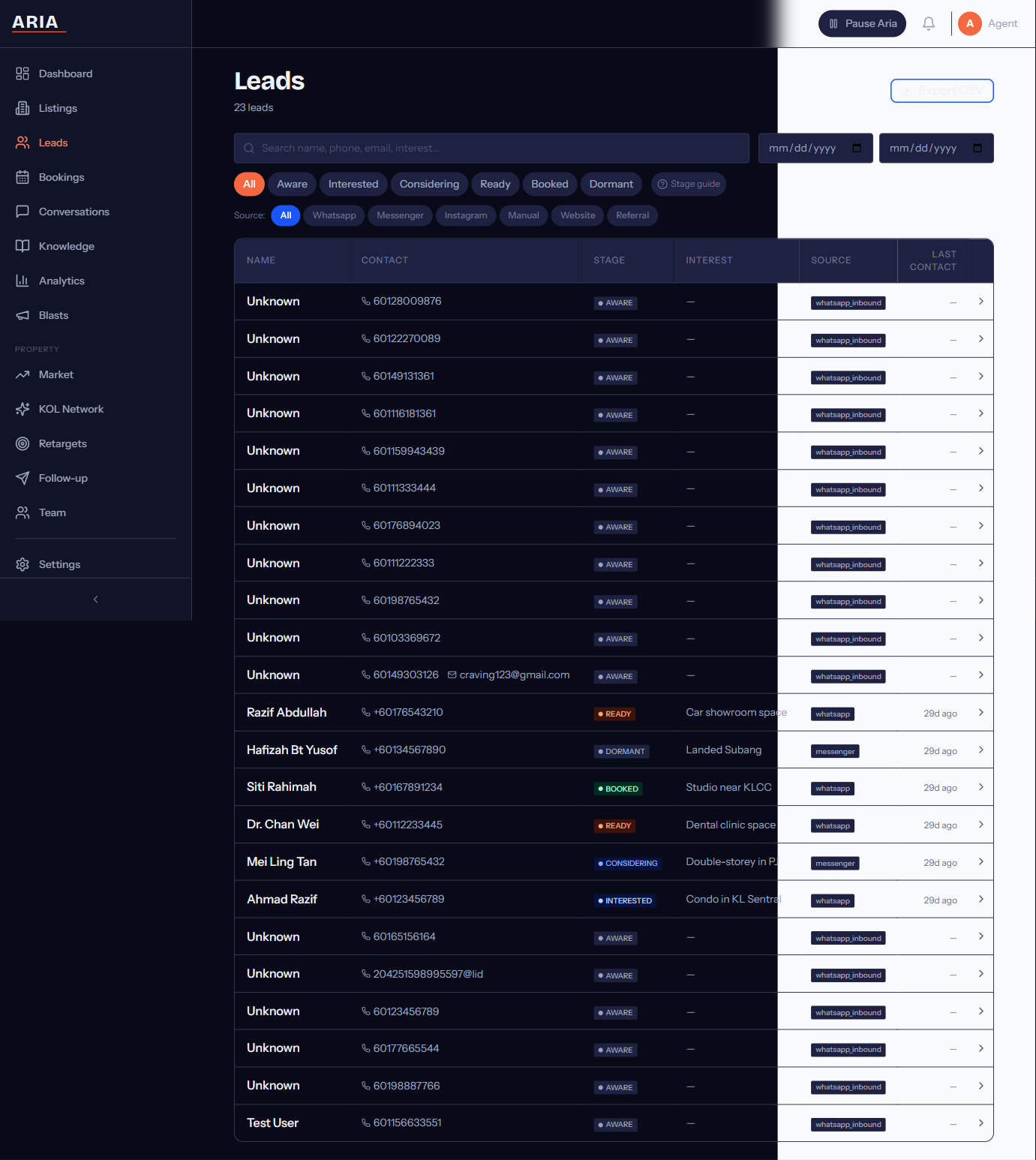
How Leads Are Created
A new lead is created automatically when someone sends their first message to your connected WhatsApp Business number. Aria captures:
- Phone number in E.164 format (e.g., 60123456789)
- Display name from their WhatsApp profile
- First message content and timestamp
- Source channel — WhatsApp or Messenger
You can also create leads manually from the dashboard using the + New Lead button, or import them in bulk via CSV/XLSX.
Journey Stages
Every lead sits in one of 8 stages. Aria advances leads through these stages automatically based on conversation signals — what the customer says, how they respond, and what actions they take.
| Stage | What it means |
|---|---|
| AWARE | First contact made. The lead has messaged but shown no specific interest yet. |
| INTERESTED | The lead asked about a product, service, or price. Intent is emerging. |
| CONSIDERING | The lead is comparing options, asking detailed questions, or requesting documents. |
| READY | The lead expressed clear intent to proceed — “I want to book”, “When can I visit?” |
| BOOKED | An appointment is confirmed on your Google Calendar. |
| CONVERTED | The deal is closed. Marked manually by your team or via integration. |
| DORMANT | The lead has not responded for 7+ days. Aria pauses outreach to avoid spam. |
| LOST | The lead explicitly opted out, or was marked as lost by your team. |
Aria only auto-advances leads forward through AWARE → INTERESTED → CONSIDERING → READY → BOOKED. Moving a lead to CONVERTED, DORMANT, or LOST is done manually or through time-based rules.
Stage Advancement Signals
Aria reads conversation content to detect advancement signals. Examples:
- AWARE → INTERESTED: “How much is unit A-12-3?”, “Do you have 3-bedroom units?”
- INTERESTED → CONSIDERING: “Can you send the floor plan?”, “What’s the difference between Package A and B?”
- CONSIDERING → READY: “I’d like to book a viewing”, “When is the next open day?”
- READY → BOOKED: Customer confirms one of the proposed time slots
You do not need to configure these signals. They are built into Aria’s conversation engine and tuned per segment.
PDPA Consent
Aria tracks PDPA consent status for every lead:
- Granted — the lead has not objected to receiving messages
- Withdrawn — the lead replied with “STOP” or equivalent opt-out keyword
When a lead opts out, Aria immediately stops sending messages to that contact. The lead record is preserved (for your reference) but marked as opted out. This is automatic and cannot be overridden.
Under Malaysia’s Personal Data Protection Act 2010, you are responsible for respecting opt-out requests. Aria handles this automatically, but ensure any manual messages also honour the consent status shown on the lead record.
Importing Leads
To bring in existing contacts from a spreadsheet:
- Go to the Leads page.
- Click Import in the top-right corner.
- Upload a CSV or XLSX file with the following columns:
| Column | Required | Format |
|---|---|---|
name | Yes | Text |
phone | Yes | E.164 (e.g., 60123456789) |
stage | No | One of the 8 stage names; defaults to AWARE |
tags | No | Comma-separated (e.g., “walk-in, project-alpha”) |
- Review the preview screen for any formatting warnings.
- Click Confirm Import. Leads are created immediately.
Duplicate phone numbers are detected and skipped — existing leads are not overwritten.
Exporting Leads
Click Export CSV on the Leads page to download your current list. The export includes name, phone, current stage, tags, last message date, booking status, and PDPA consent status.
If you have active filters (by stage, tag, or search), the export only includes the filtered results.
Tags
Tags let you organise leads beyond the journey stages. Common uses:
- Campaign source:
fb-ad-april,open-day-2026 - Product interest:
3-bed,penthouse,ev-sedan - Priority:
vip,hot-lead,follow-up-friday
Add tags from the lead detail drawer or during bulk import. Filter by tag on the Leads page to focus on specific groups.
Search and Filters
The Leads page search bar accepts:
- Name — partial matches work (“Ahmad” finds “Ahmad bin Ali”)
- Phone number — enter any portion of the number
- Stage — filter dropdown for one or multiple stages
- Tag — filter by any tag or combination of tags
Filters combine with AND logic — selecting stage INTERESTED and tag penthouse shows only interested leads tagged with penthouse.