Bookings
Aria turns conversations into appointments by checking your calendar, proposing available slots, and confirming bookings — without you lifting a finger.
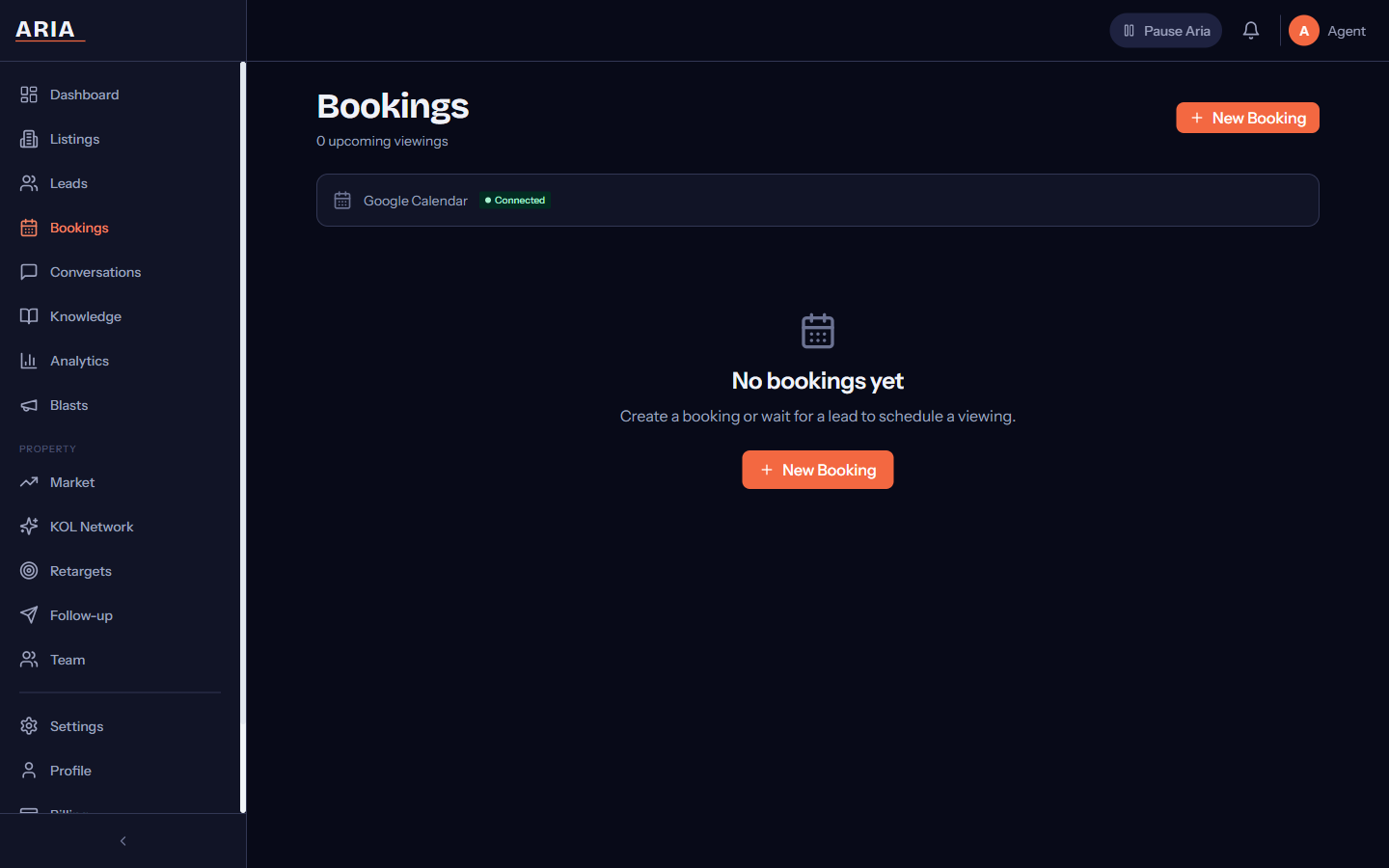
Connect Google Calendar
Before Aria can book appointments, it needs access to your Google Calendar to check availability and create events.
- Go to Settings → Channels from the sidebar.
- Find the Google Calendar section and click Connect Google Calendar.
- A Google OAuth window opens — sign in with the Google account that has your business calendar.
- Grant Aria permission to view and create events.
- The status changes to Connected, and your calendar name appears on the page.
Aria only accesses the primary calendar on the connected Google account. If you use a separate calendar for appointments, make it the primary calendar or move your availability there.
How Booking Works
When a lead reaches the READY stage — meaning they have expressed intent to meet, visit, or consult — Aria initiates the booking flow automatically:
- Availability check — Aria scans your Google Calendar for the next 7 days and identifies 3 open time slots during your configured business hours.
- Proposal — Aria sends a message to the lead with the 3 options, formatted clearly:
“I have these slots available for you:
- Tuesday 22 Apr, 10:00 AM
- Wednesday 23 Apr, 2:00 PM
- Friday 25 Apr, 11:00 AM Which works best for you?”
- Selection — the lead replies with their choice (by number or by describing the slot).
- Confirmation — Aria creates a Google Calendar event with the lead’s name and phone number, then sends a confirmation message:
“Your appointment is confirmed for Tuesday 22 Apr at 10:00 AM. See you there!”
- Notification — a summary is posted to your WhatsApp group (if configured) so your team knows about the new booking.
The entire flow takes 2–3 messages and typically completes within minutes.
If no slots are available in the next 7 days, Aria lets the lead know and asks them to suggest a preferred date. You can then manually create the booking.
Viewing Bookings
The Bookings page shows all appointments in a list view with three tabs:
Confirmed
Appointments where the lead selected a slot and the calendar event was created. Each entry shows:
- Lead name and phone number
- Date and time
- How the booking was made (AI-automated or manual)
- Link to the conversation
Pending
Bookings where Aria proposed slots but the lead has not responded yet. If a lead does not reply within 24 hours, Aria sends a gentle follow-up nudge.
Cancelled
Appointments that were cancelled by the lead, by your team, or automatically (e.g., if the lead opted out). Cancelled bookings are removed from Google Calendar automatically.
Reminders
Aria sends automated reminders to leads before their appointments:
| When | Message |
|---|---|
| 24 hours before | ”Just a reminder — your appointment is tomorrow at [time]. Looking forward to seeing you!“ |
| 2 hours before | ”Your appointment is in 2 hours at [time]. See you soon!” |
Reminders go out on WhatsApp to the lead’s number. They respect opt-out status — if a lead has withdrawn PDPA consent, reminders are not sent.
Manual Remind
On the Bookings page, each confirmed booking has a Remind button. Click it to send an ad-hoc reminder message to the lead immediately. This is useful if:
- You rescheduled and want to confirm the new time
- The appointment is today and you want a same-day nudge
- The automated reminder window has already passed
Rescheduling
To reschedule a booking:
- Open the booking from the Bookings page.
- Click Reschedule.
- Pick a new date and time from the available slots.
- Aria sends the lead a message with the updated time and asks for confirmation.
- The Google Calendar event updates automatically once the lead confirms.
Cancelling
To cancel a booking:
- Open the booking from the Bookings page.
- Click Cancel Booking.
- Aria notifies the lead that the appointment has been cancelled.
- The Google Calendar event is deleted.
- The lead’s stage reverts to READY so Aria can re-engage them when appropriate.
Cancelled bookings are kept in the Cancelled tab for your records. They are not permanently deleted.
Tips
- Keep your Google Calendar accurate — Aria checks real-time availability, so block out personal time or internal meetings to prevent double-booking
- Set business hours on the AI Persona page so Aria only proposes slots during your working hours
- Review pending bookings daily — leads who have not picked a slot may need a nudge or a phone call
- Use the dashboard calendar for a visual overview of your upcoming week