Dashboard
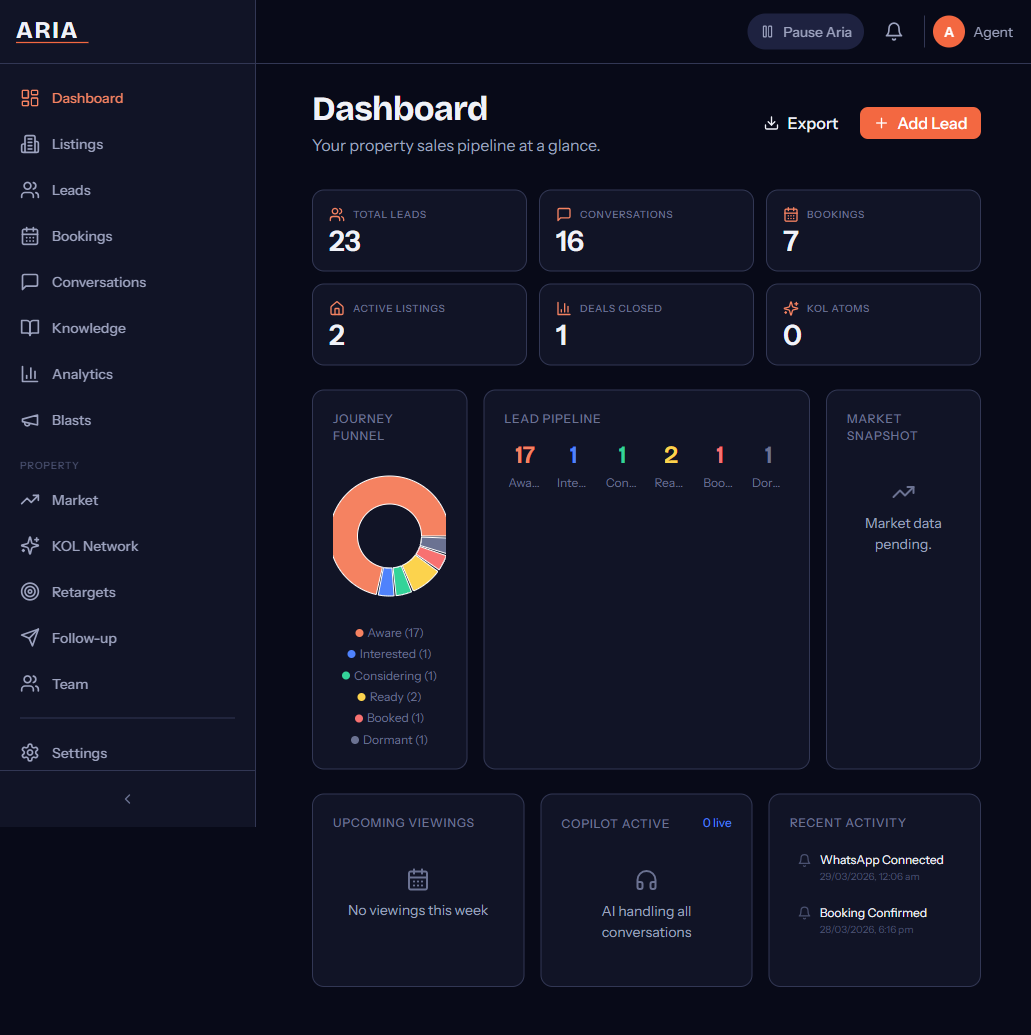
The dashboard gives you a real-time overview of your sales pipeline, upcoming appointments, and lead activity — all on a single screen.
KPI Cards
Three cards sit at the top of the dashboard. Each shows the current count plus a trend indicator comparing the last 7 days to the previous 7 days.
Total Leads
The total number of contacts in your pipeline across all journey stages. This includes everyone from first-time enquirers to converted customers. A rising number means your top-of-funnel is healthy.
Active Conversations
Leads who have exchanged messages with Aria within the last 48 hours. This tells you how many people Aria is currently engaging. If this number drops while Total Leads stays flat, leads may be going dormant — check the Leads page for follow-up opportunities.
Bookings Made
Appointments successfully scheduled this period. Each booking corresponds to a confirmed Google Calendar event. This is your primary conversion metric — it shows how many leads Aria moved from conversation to commitment.
Appointment Calendar
Below the KPI cards, the calendar displays your upcoming appointments pulled from your connected Google Calendar. Colour coding shows appointment status:
- Blue — confirmed and upcoming
- Amber — pending confirmation from the lead
- Grey — cancelled
Click any appointment to see the lead’s name, phone number, and the conversation that led to the booking.
The calendar syncs with Google Calendar in both directions. Events you create manually in Google also appear here.
Live Activity Stream
The right panel shows a real-time feed of lead movements as they happen:
- New lead — someone messaged your WhatsApp number for the first time
- Stage change — a lead moved from one journey stage to another (e.g., INTERESTED → CONSIDERING)
- Booking created — a new appointment was confirmed
- Message sent — Aria replied to a customer
- Document uploaded — a team member added files to the knowledge base
Each entry has a timestamp and a link to the relevant lead or conversation. The stream updates automatically — no need to refresh.
Journey Funnel
The funnel visualisation shows how your leads distribute across the five active selling stages:
- AWARE — lead has made first contact but shown no specific interest yet
- INTERESTED — lead asked about a product, service, or price
- CONSIDERING — lead is comparing options, asking detailed questions, or requesting more information
- READY — lead has expressed intent to proceed (e.g., “I want to book”, “When can I come?”)
- BOOKED — appointment confirmed on calendar
The funnel width at each stage is proportional to the number of leads there. Narrow bottlenecks between stages tell you where leads are getting stuck. For example, a wide INTERESTED bar and a thin CONSIDERING bar might mean your knowledge base needs more detailed product information.
Leads in DORMANT, CONVERTED, or LOST stages are excluded from the funnel. You can view them on the Leads page.
Quick Actions
Three action buttons appear at the top-right corner of the dashboard:
+ New Lead
Opens a form to manually add a lead. Enter the contact’s name, phone number (Malaysian E.164 format: 60XXXXXXXXX), and optionally assign a tag or starting stage. Useful for walk-in customers or leads from other channels.
Export CSV
Downloads your current lead list as a CSV file. The export includes name, phone, stage, tags, last message date, and booking status. Filtered views export only the visible leads.
Send Blast
Opens the broadcast composer. Select a recipient list by stage or tag, write your message, and schedule or send immediately. Blasts go out through WhatsApp and respect opt-out preferences automatically.
Blast messages count towards your monthly message quota. Check your remaining quota in Settings before sending large broadcasts.
Tips for Using the Dashboard
- Check the dashboard at the start of your day to see overnight activity
- Use the funnel to identify which stage needs attention — then click through to those leads
- Keep the Live Activity stream open in a browser tab for real-time awareness during working hours
- Export CSV weekly to keep an offline backup of your lead data